
The Variable Generator uses AI to suggest and make updates to your CSS variables based on how you prompt it
- Describe the style changes you want
- AI analyzes your current variables and suggests changes
- Review the preview and apply changes
Writing Style Descriptions
Be descriptive about the visual direction you want
Good examples for changing variables:
- More professional and corporate, use blue as accent color
- Warmer color palette, increase spacing, softer borders
- Modern and minimal, reduce visual clutter, use neutral grays
Preview Changes
Before applying, you’ll see a preview of all proposed changes:
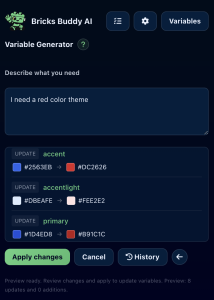
Color swatches
-Visual preview of color changes
Current → New
– See the before and after values
Sorted display
– Updates shown first, then additions
Applying Changes
- Review all changes in the preview
- Click Apply to save changes
- Variables are updated in Bricks settings
> Note: A backup is automatically created before applying changes, but please have your own backups ready.
Backup & Restore
The Variable Generator automatically saves backups before each change.
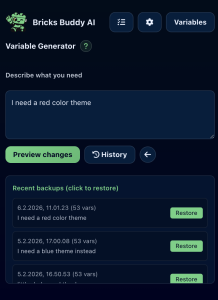
- Click the ↺ History button
- See a list of recent backups with timestamps
- Restore the one you need
Backup Limits
– Last 10 backups are stored
– Older backups are automatically removed
– Backups include all variables and categories